Most teams tag their newsletters carefully and leave everything else alone. Order confirmations, shipping updates, invoice emails, and appointment reminders go out with plain links, and nobody thinks twice.
That’s a missed opportunity. Transactional emails are among the most-opened messages a business sends, and they’re full of clicks: track my parcel, view my invoice, manage my booking, and so much more. When those links aren’t tagged, the website visits that come from these emails often show up as direct traffic in your analytics dashboard. The traffic is real, but you can’t see where it came from.
Google Analytics Spotler SendPro
Analytics Integration adds the parameters you configure to the links in your messages, so you can follow recipients from the email to your website. There are pre-filled templates for the most popular analytics systems, including Google Analytics. You set it up once in the flow, and every message that passes through it is tagged automatically.
Setting it up is simple
The screenshot below shows the Google Analytics template:
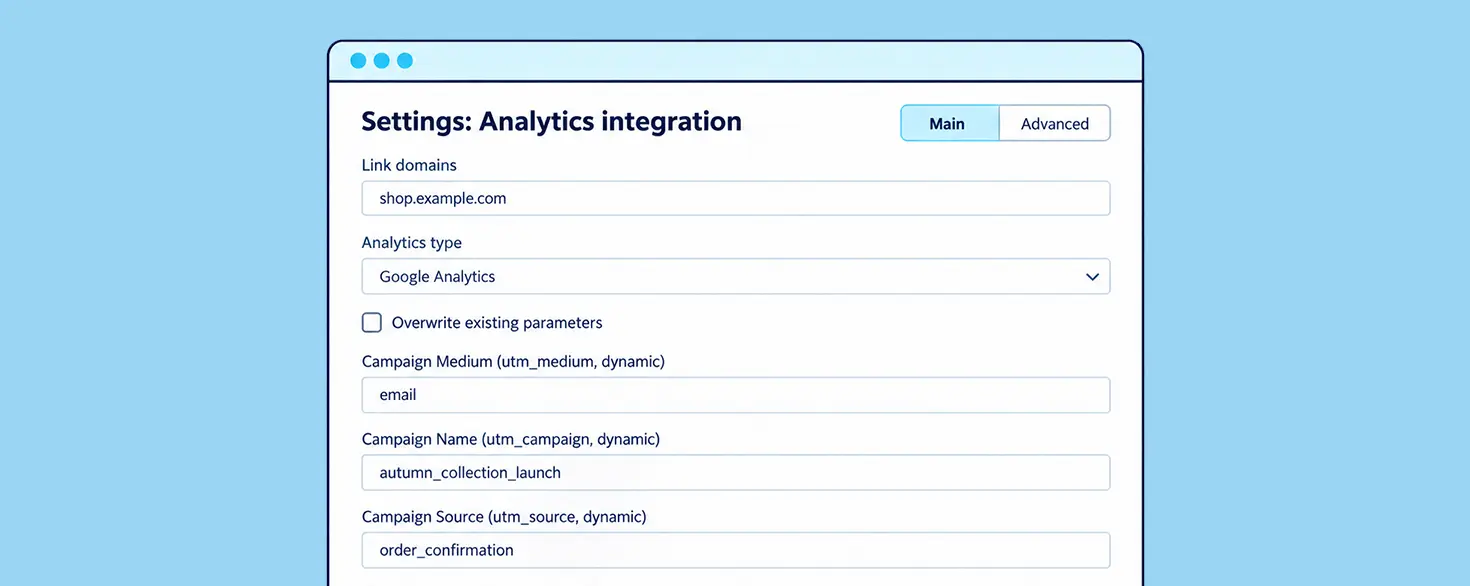
- Link domains: Apply the tagging to specific link domains only. This lets you give links to your help centre different analytics from links to your main site.
- Analytics type: Choose Google Analytics and the default parameters are filled in for you. Choose Custom if you need parameters beyond the standard UTM set.
- Overwrite existing parameters: This is off by default, so links that already carry tags are left alone and only missing parameters are added. Switch it on if your source system sends its own UTM tags and you want the flow to replace them.
- UTM fields: Medium, campaign, source, content and term can each be static, dynamic, or a mix of the two.
In the example, the values are fixed but can also be dynamic. Provided data or Message Data (found here) can be used to generate a dynamic value for each UTM field. Every email sent through a flow is then tagged with that flow’s name, so a flow called “Order confirmation” shows up in your reports under exactly that name.
What you see in Google Analytics
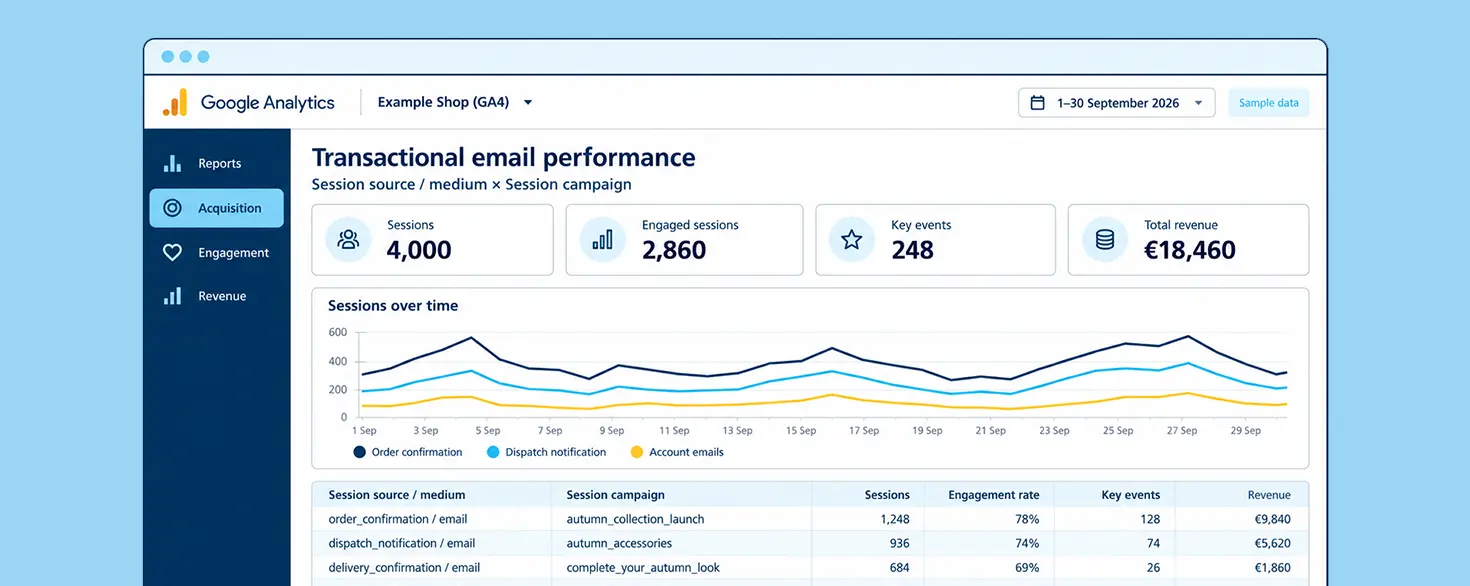
Once the links are tagged, transactional traffic appears in your acquisition reports under the campaign names you’ve set, instead of disappearing into direct. You can see which flows send visitors to your site, how those visitors behave once they arrive, and whether they go on to convert.
For a webshop, that might mean seeing that shipping update emails send people back to browse more products. For a software company, it might show that invoice emails drive visits to the billing page, or that onboarding messages lead to feature adoption. Either way, you’re looking at engagement you were already generating but couldn’t measure.
Four ways to get more out of it
- Name your flows like campaigns. Because the campaign value comes from the flow description, a clear naming convention gives you clean, readable reports. “Order confirmation” tells you more than “Flow 3”.
- Keep transactional and marketing apart: GA groups traffic with the medium
emailinto its Email channel. To tell transactional sends from newsletters, use a distinct source value or a consistent campaign naming pattern for the transactional flows. - Tag by domain: If your messages link to more than one site, use link domains so each destination gets the tagging that suits it.
- Use overwrite when you need consistency: If a system like your webshop or CRM already sends its own UTM tags, overwriting means every message follows one convention.
Keep tagging deliberate
You don’t have to tag every message. The Advanced tab lets you set a condition in FreeMarker, so the step only runs when the condition is met. A password reset email, for example, usually has no campaign to attribute, so you may prefer to leave it out.
Also remember that the tagging only passes information to your website. What your analytics tool then does with it depends on your own consent setup, and our piece on email tracking pixels and consent covers the wider picture. It’s worth checking with your privacy team which flows you want to tag.
How to set it up
- Open the flow you want to tag.
- Add an Analytics Integration flowstep ahead of any click tracking step.
- Choose Google Analytics as the analytics type.
- Set your campaign, medium and source values. Use the flow description for the campaign so each flow is named in your reports.
- Decide whether to overwrite existing parameters, and add a condition if the step should only apply to certain messages.
The full details are in the help centre articles on the Analytics Integration flowstep and on using Google Analytics integration in a template.
Transactional email already reaches your customers when they’re paying attention. With a few tags on the links, it can also show you what happens next.