


If your emails are landing in spam, getting rejected outright, or arriving with a “via” warning next to your name, unconfigured authentication is usually the reason. Since Google, Yahoo and Microsoft tightened their sender requirements, SPF, DKIM and DMARC have moved from best practice to baseline: without all three, bulk and transactional email increasingly does not reach the inbox at all.
This guide explains what each record does, walks through setting them up in the right order, and shows how to confirm they are working. It is written for the person who has to make authentication actually function, not just understand it in theory.
What SPF, DKIM and DMARC actually do
The core point: these three records tell receiving mail servers that an email genuinely comes from your domain, and what to do if it does not.
They are complementary, not interchangeable. SPF lists which servers are allowed to send on your behalf. DKIM adds a cryptographic signature that proves a message was not tampered with in transit. DMARC ties the two together: it tells receivers how to treat mail that fails the checks, and asks them to report back so you can see who is sending as you.
Think of it as three questions a receiving server asks about every message: is this sender on the approved list (SPF), is the signature valid and aligned (DKIM), and if something does not match, what does the domain owner want me to do about it (DMARC). Get all three to answer “yes,” and you have removed the most common reason legitimate email get filtered. For a gentler primer on the concepts, see our elementary explanation of email authentication.
Easy domain setup without the hassle
With a managed platform such as Spotler SendPro, the alignment between these records and your actual sending is handled for you, which is where most DIY setups quietly fail.

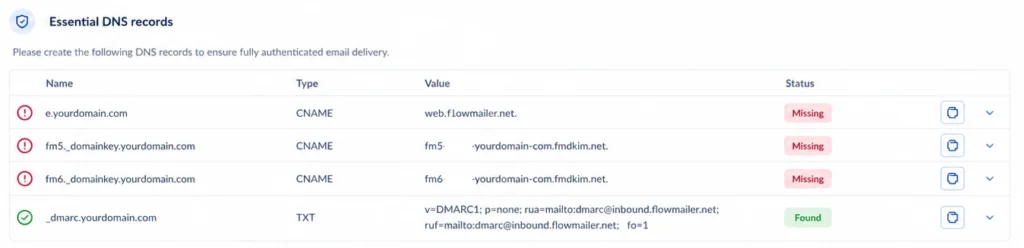
Set them up in the right order: SPF DKIM DMARC
The core point: DMARC only works once SPF and DKIM are in place, so configure them in sequence rather than all at once.
Step 1: Publish an SPF record
SPF is a single TXT record in your domain’s DNS that lists every service permitted to send email using your domain. You publish one SPF record per domain; multiple records will fail.
- Identify every legitimate sender: your mailbox provider (e.g., Microsoft 365 or Google Workspace), your marketing or transactional platform, and any third-party tools that send on your behalf.
- Create a TXT record that starts with
v=spf1and lists those sources using include mechanisms, ending with a policy such as ~all (soft fail) while testing, then -all (hard fail) once you are confident. - Publish one SPF record only. If you already have one, merge the new sender into it rather than adding a second.
- Watch the ten-DNS-lookup limit: each include counts, and exceeding ten causes SPF to fail (“permerror”). Consolidating senders onto a single managed platform is one way to stay under it.
Step 2: Enable DKIM signing
DKIM adds a digital signature to the header of every message you send. The receiving server uses a public key published in your DNS to verify that the signature is valid and that the message was not altered.
- Generate a DKIM key pair in your sending platform. The platform keeps the private key and gives you a public key to publish.
- Publish the public key as a TXT or CNAME record at the selector your platform specifies (for example, selector.
_domainkey.yourdomain.com). - Enable signing in the platform and send a test message to confirm that the signature validates.
Use a 2048-bit key where your DNS provider supports it, and keep separate selectors for separate sending sources so you can rotate keys without disruption.
Step 3: Publish a DMARC policy
DMARC is a TXT record at _dmarc.yourdomain.com. It sets your policy for messages that fail authentication and requests aggregate reports so you can monitor your domain.
- Start in monitoring mode with a policy of p=none and a reporting address (rua=). This changes nothing for recipients but starts the reports flowing.
- Read the aggregate reports for a few weeks to confirm all your legitimate mail passes SPF or DKIM with alignment, and to spot anything sending as you that should not be.
- Tighten the policy to p=quarantine, then to p=reject, once you are confident legitimate mail is unaffected. Reject is the policy Gmail, Yahoo and Microsoft increasingly expect from bulk senders.
For the specifics behind these requirements, see Gmail and Yahoo’s DMARC requirements and Outlook’s new DMARC requirements.
How to check it is all working
The core point: never assume setup is correct; verify each record and inspect a real message before tightening any policy.
- Send a test message to a mailbox you control and view the original/raw headers. You are looking for spf=pass, dkim=pass and dmarc=pass.
- Confirm alignment, not just a pass: the domain in the From address must align with the SPF and DKIM domains. DMARC fails when SPF and DKIM technically pass but the domains do not match.
- Read your DMARC aggregate reports rather than trusting a single test. They reveal every source sending as your domain, including ones you may have forgotten.
This alignment requirement is the single most common reason a setup looks correct but DMARC still fails, and it is the hardest part to keep right when you send from several platforms at once.
Why managed authentication is easier to keep right than to set up
The core point: authentication is not a one-time task; it breaks quietly whenever sending sources, keys or DNS changes.
Most authentication problems are not setup errors. They appear later: a new tool is added without updating SPF, a DKIM key is rotated but the DNS record is not, an SPF record drifts past the 10-lookup limit, or a forgotten subdomain starts sending unauthenticated mail. Each of these silently degrades deliverability, and you often only notice when something important bounces.
This is the case for consolidating sending onto a managed platform. Spotler SendPro handles authentication alignment for the mail it sends and keeps it correct as your setup changes, so SPF, DKIM and DMARC stay aligned without manual DNS housekeeping every time something moves. To be clear about what that does and does not include: SendPro is a managed delivery and logging layer; it does not provide dedicated IP addresses or IP warming, because its shared, actively managed sending pools are what protect deliverability instead.
More questions answered
Do I need all three of SPF, DKIM and DMARC?
Yes. SPF and DKIM each prove a different thing, and DMARC only functions once at least one of them passes with alignment. Major mailbox providers now expect all three from bulk senders, so a partial setup increasingly means filtered or rejected mail.
In what order should I set them up?
Publish SPF first, enable DKIM second, and add DMARC last in monitoring mode (p=none). DMARC depends on the other two, so configuring it first gives you nothing to enforce against.
Why does DMARC fail when SPF and DKIM pass?
Almost always because of alignment. DMARC requires the domain in your visible From address to match the domain validated by SPF or DKIM. A technical pass on a different domain still counts as a DMARC failure.
How long does it take for the records to work?
DNS changes typically propagate within minutes to a few hours, depending on your provider and TTL settings. Leave DMARC in monitoring mode for a few weeks before tightening, so you can confirm that legitimate mail passes before you start quarantining or rejecting it.
Does Spotler SendPro set up authentication for me?
SendPro manages authentication alignment for the email it sends and keeps it correct as your sending changes, which removes most ongoing DNS maintenance. It is a managed delivery layer rather than a DNS-hosting service, and it does not use dedicated IPs or IP warming.